01
Exposure Bracket
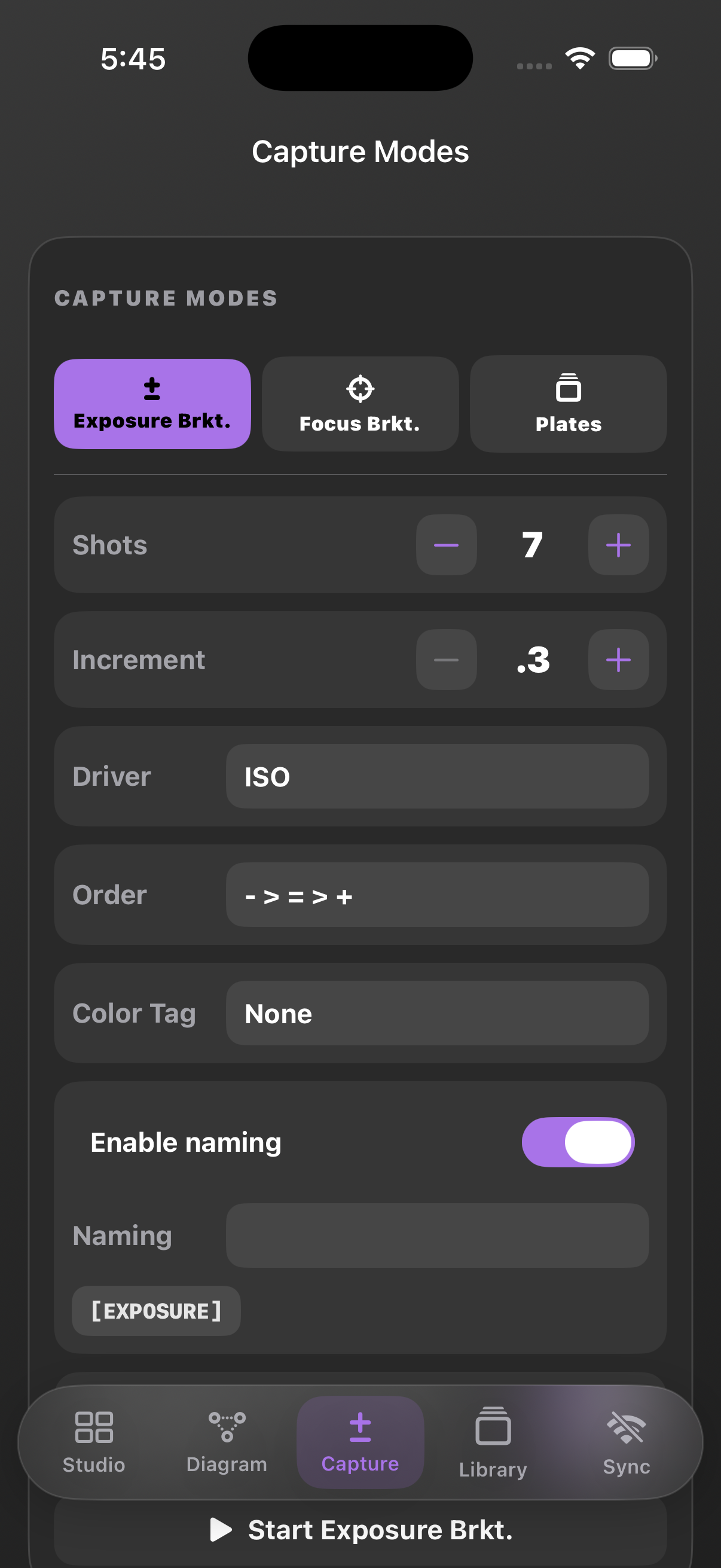
Set the number of frames and exposure increment, confirm the sequence, and keep a consistent naming plan.
A companion app for Capture One. Capture Companion works in conjunction with Capture One on your Mac. Capture One is required and sold separately.
Tutorial / Demo
This launch guide shows how Capture Companion works alongside Capture One on Mac and how Suite access extends the workflow to iPhone, iPad, and Apple Watch. Pair devices for synchronized set control or use the functions supported locally on each platform. Capture One is required and sold separately.
Installation, flexible screen placement, camera assignment, Sets, mobile pairing, lighting settings, capture modes, and PDF export.
VIDEO COMING SOON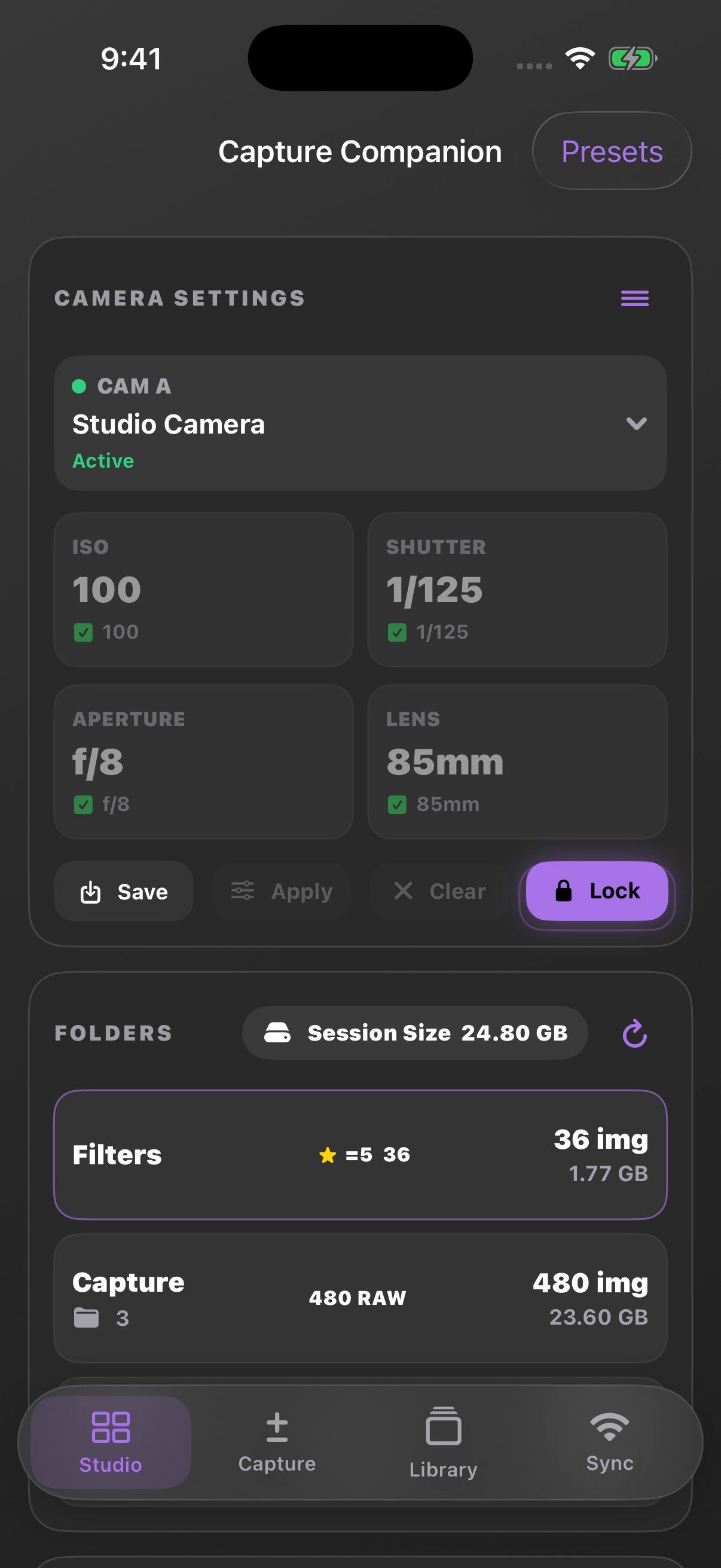
Quick start
Use this as a preflight checklist while the Mac app and your chosen Apple companion devices are open.
Install the Mac application. Suite subscribers can also install Capture Companion on iPhone, iPad, and Apple Watch from the applicable App Store listing.
Approve the local access Capture Companion needs to work alongside the active photography workflow.
Place Capture Companion horizontally at the top or bottom, or vertically on the left or right, so it stays accessible without interfering with the Capture One workspace.
Open the required Capture One session and confirm the expected Capture, Selects, and Output folders.
Select the connected camera and check link health before saving the working exposure.
Use Sets to keep each lighting and camera setup organized inside the production.
Save trusted ISO, shutter, aperture, and lens information; apply it when needed and lock the setup.
Request access from the iPhone or iPad over the same trusted local network, approve that request on the Mac, and confirm the active setup appears. For Apple Watch, first connect its paired iPhone to the Mac, then open Capture Companion on the Watch. No separate Watch-to-Mac connection or approval is needed.
Keep light groups, modifiers, power settings, and set notes alongside the active session.
Choose an exposure bracket, focus bracket, or plate sequence and follow the guided capture flow.
Export pre-production or post-production notes while preserving camera settings and lighting details for future reference.
Capture modes in action
Each mode keeps the sequence controls and the current camera context together on iPhone.
Set the number of frames and exposure increment, confirm the sequence, and keep a consistent naming plan.
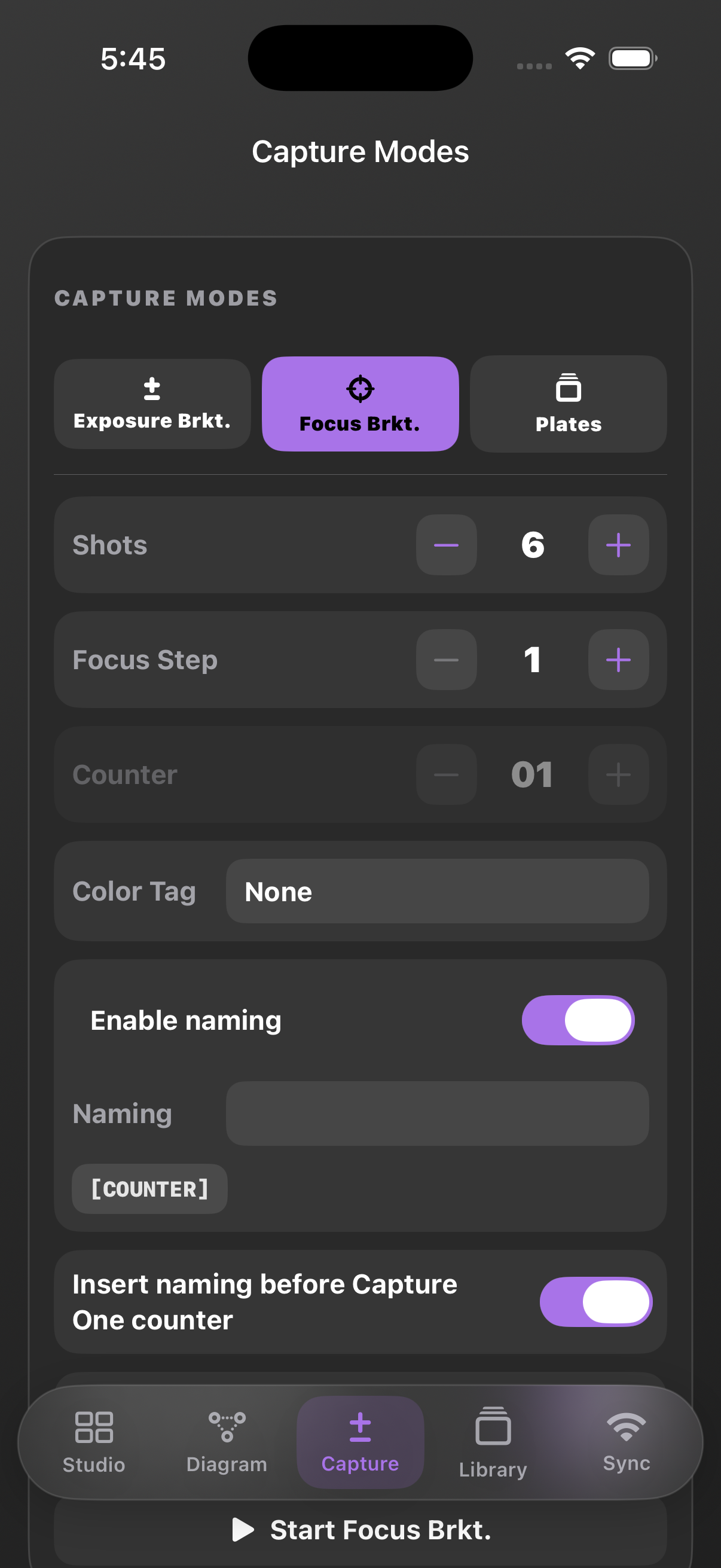
Guide a repeatable focus sequence while keeping the camera and Set context in view.
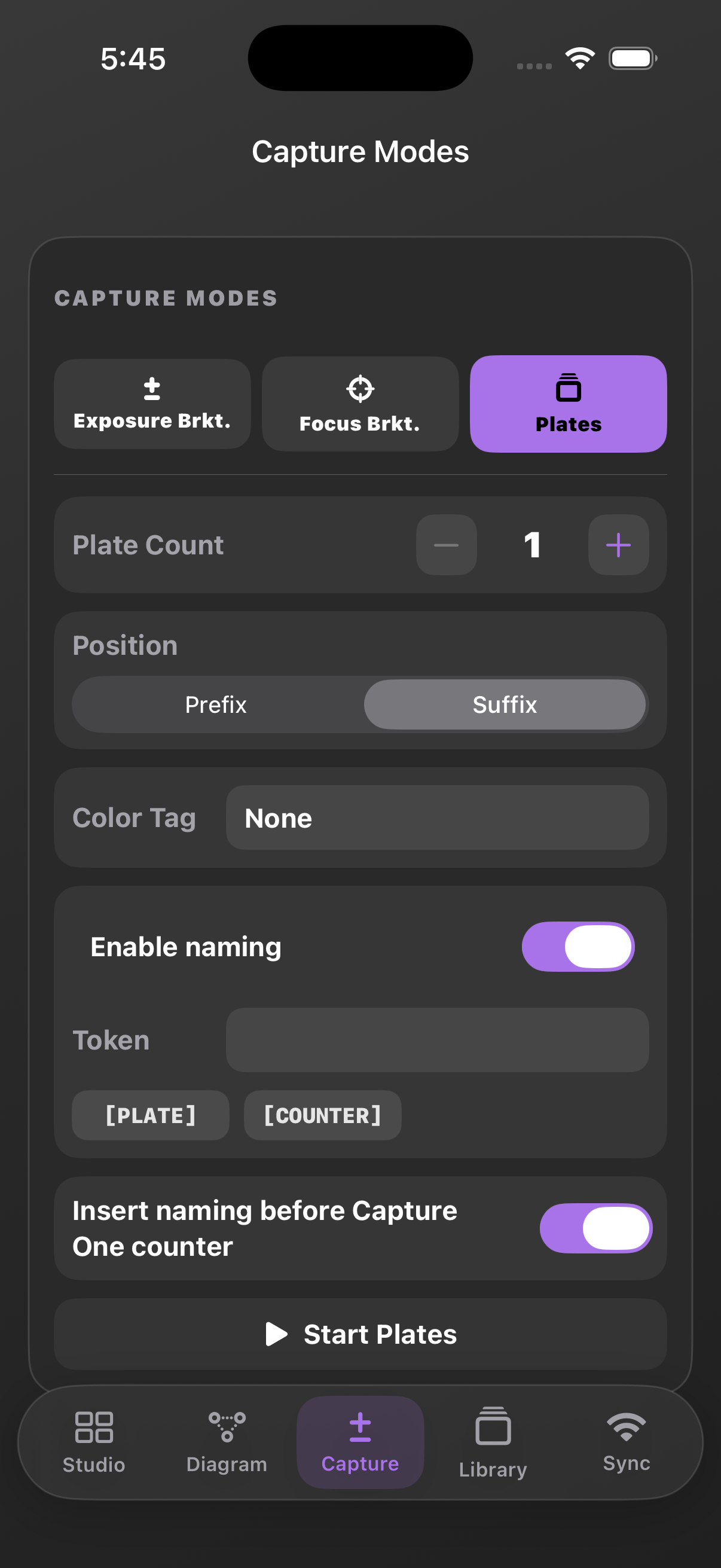
Organize clean plates and supporting frames so the production record stays understandable after wrap.
Connected Studio
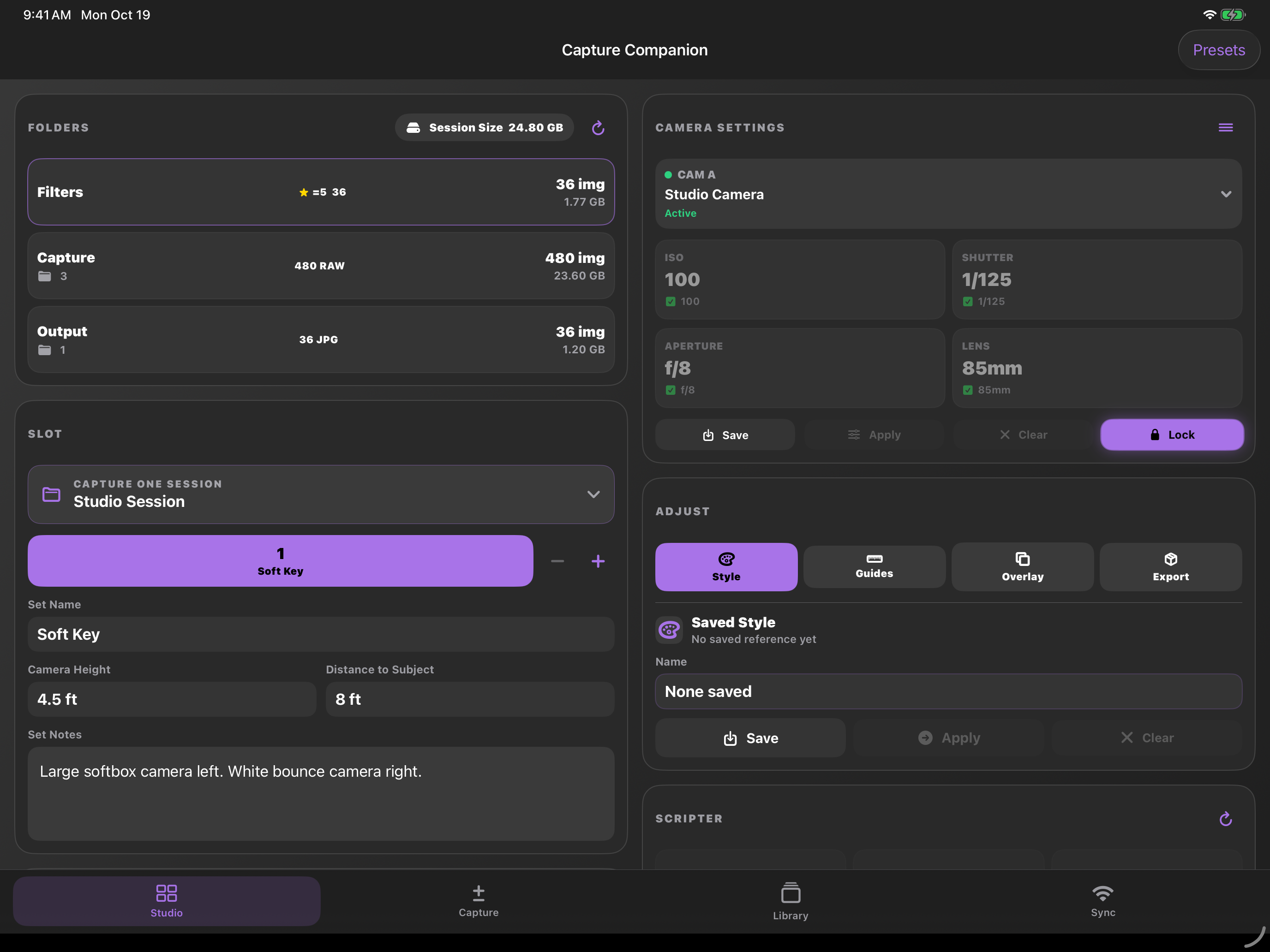
The mobile Studio page combines session folders, camera settings, and set notes. Screenshot captured in the iPad simulator using sample data.
If something does not connect
Built for the whole shoot
Mac covers the desktop workflow. Suite adds iPhone, iPad, and Apple Watch access. Trial availability and localized pricing are confirmed securely before checkout.